26 Feb 2023

How do I create a free AWS account and set up my console?

AWS is one of the most popular cloud computing platforms and is used by many companies around the world.

gft-image-author-patrycjusz-czerniga.jpg
Patrycjusz Czerniga
Senior Devops engineer
blogAbstractMinutes
blogAbstractTimeReading

gft-image-mood-13.jpg
Banking
Technology Trends
Cloud
Amazon Web Services
Platform Modernization
contact
share
AWS is an abbreviation for Amazon Web Services, a platform of cloud computing services offered by Amazon. AWS enables a wide range of computing services such as data storage, compute, databases, web applications, etc.

With AWS, you can easily and flexibly scale and manage your applications and services from anywhere in the world using a user-friendly web interface . AWS is one of the most popular cloud computing platforms and is used by many companies around the world.
What is AWS?

AWS offers a free version of its platform, which is called AWS Free Tier. 

The free version of AWS allows you to use selected services within certain limits without incurring additional costs. 

For example, you can enjoy free cloud storage, free compute, or a free database for a limited period of time. After this time, you can continue to use the services, but you will have to pay for their use. The free version of AWS is perfect for people who want to try out the platform or use it in a small way.


Please remember that when creating an account, you will need to provide a payment card number that can be used to pay online. Therefore, if you exceed any limit, you will be charged from this card. Therefore, it is worth monitoring costs on an ongoing basis.


You can read more on Wojciech Lepczyński's blog:  @wlepczynski  https://lepczynski.it/aws/jak-kontrolowac-koszty-w-chmurze-aws/

Step 1

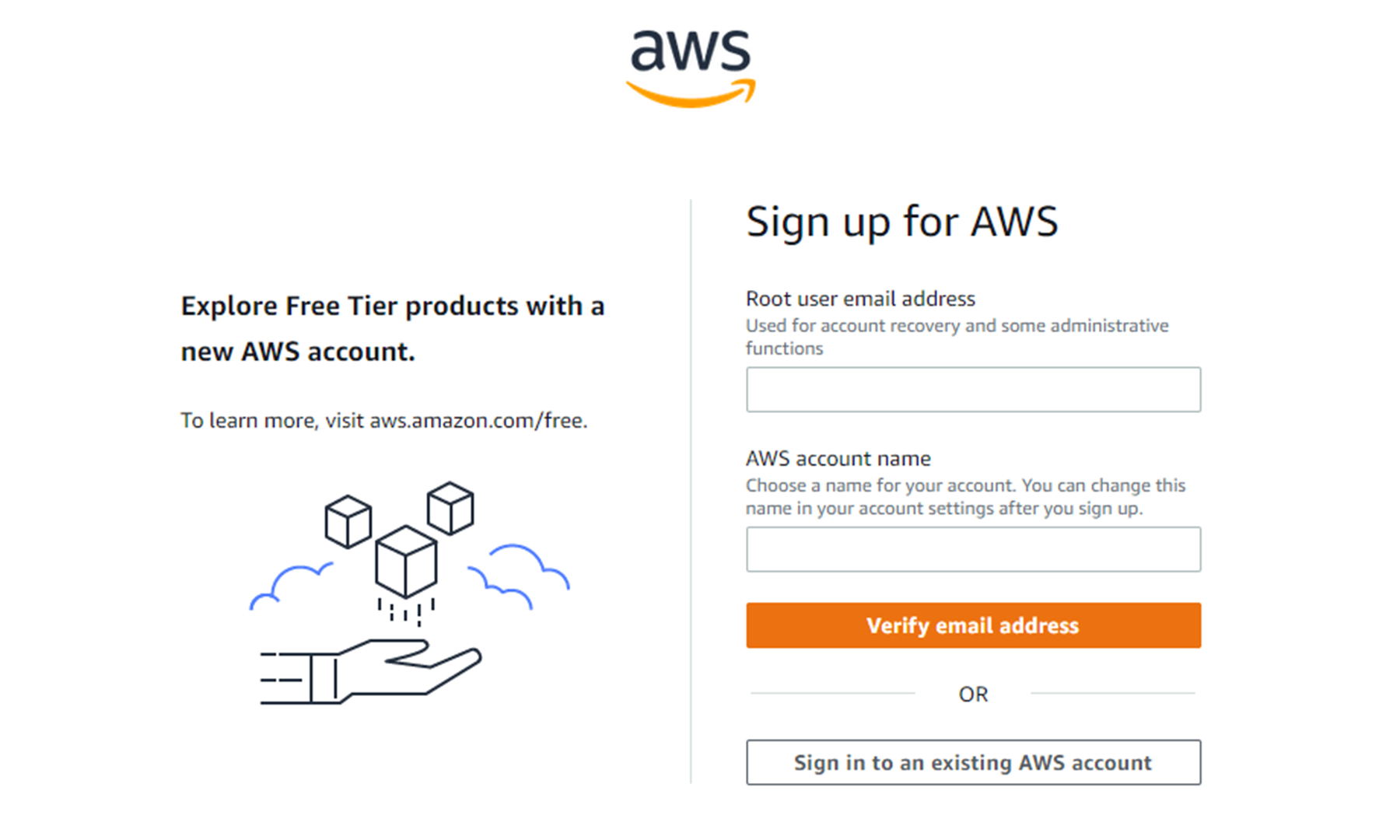
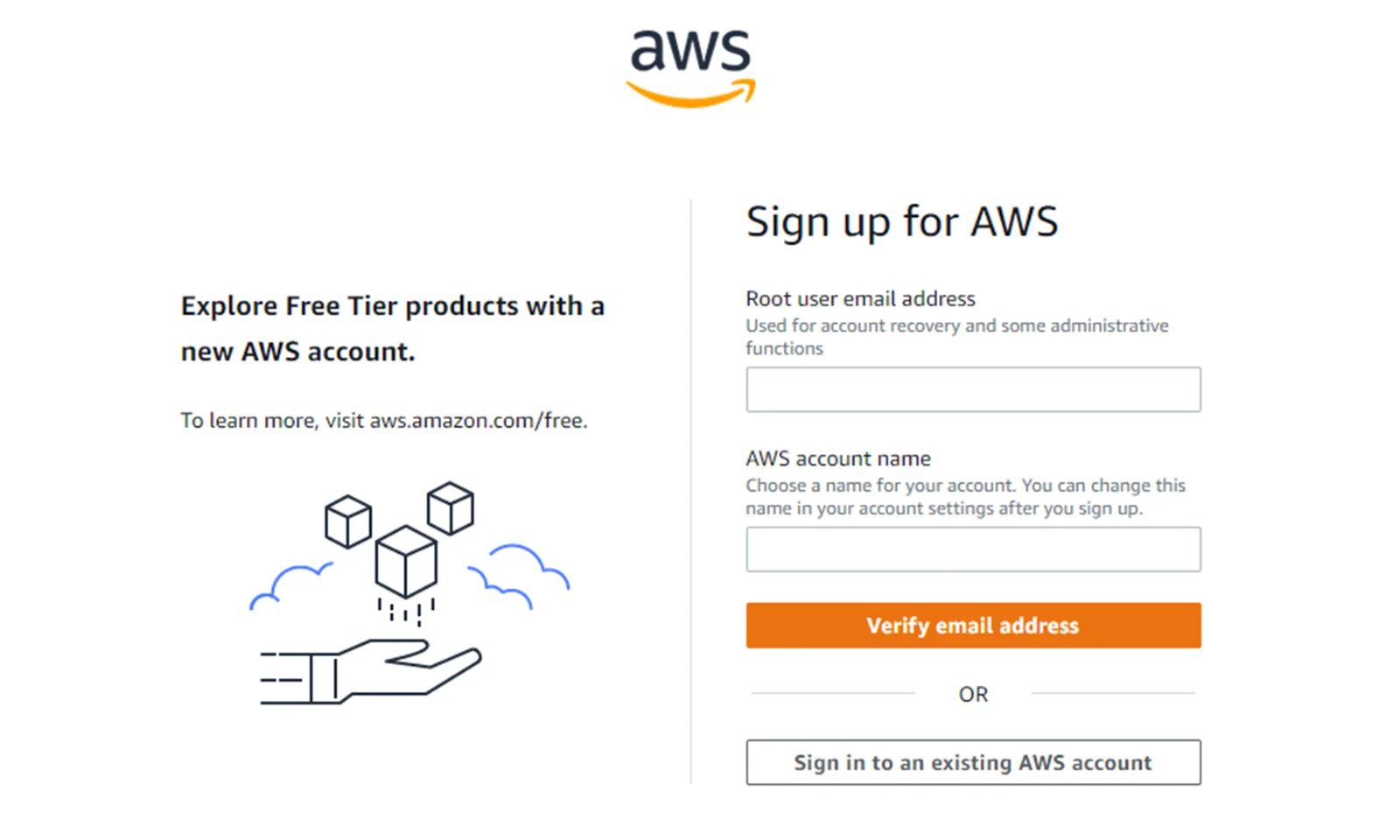
Start creating an account by going to the aws portal. 

On this page, we provide our email address and AWS account name. The account name is not that important. You can change it after logging in to your account.

gft-image-blog-jak-utworzyc-darmowe-konto-aws-i-skonfigurowac-konsole-1.png

gft-image-blog-jak-utworzyc-darmowe-konto-aws-i-skonfigurowac-konsole-2.png
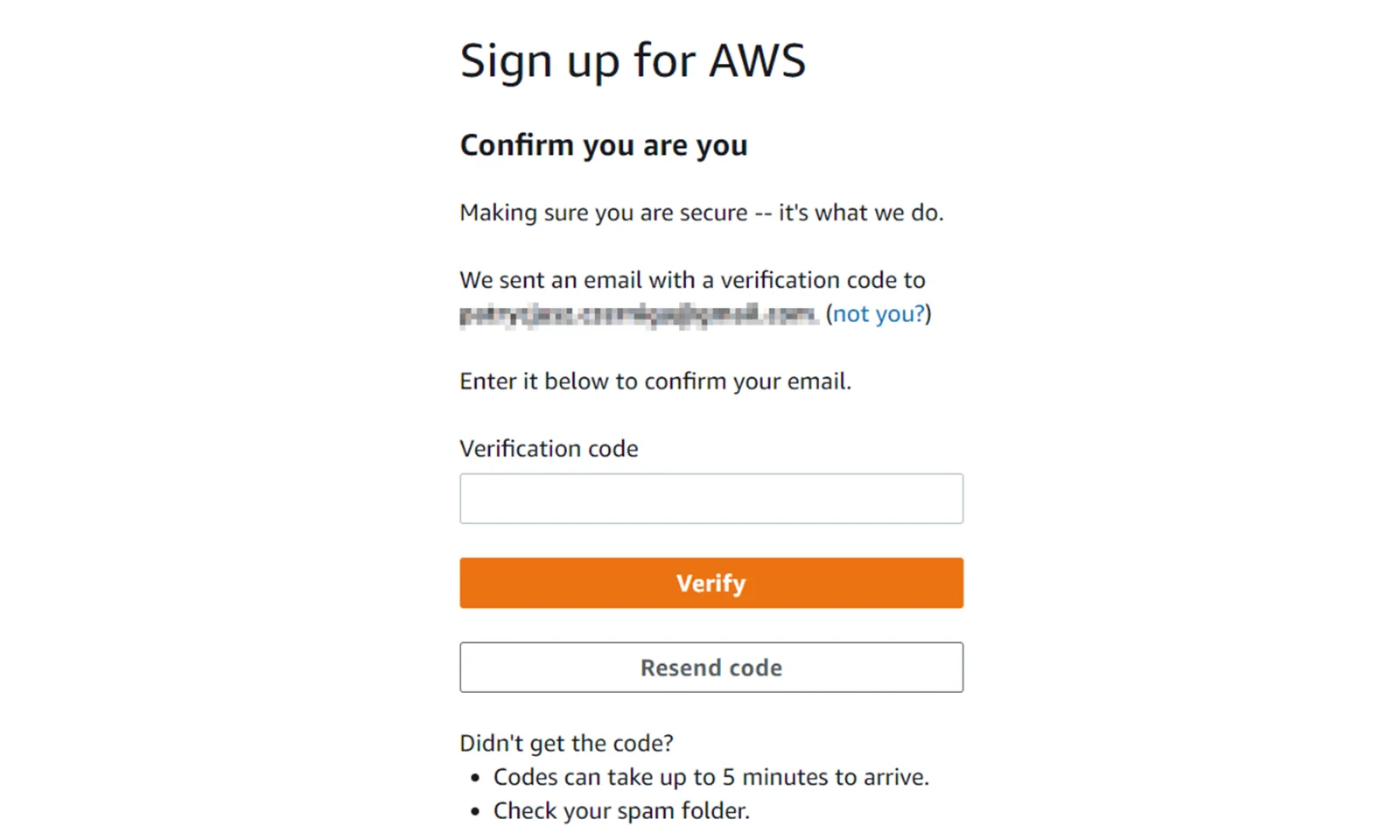
Step 2: Now we need to confirm our email address by entering the verification code that we receive in a message from AWS.
gft-image-blog-jak-utworzyc-darmowe-konto-aws-i-skonfigurowac-konsole-3.png
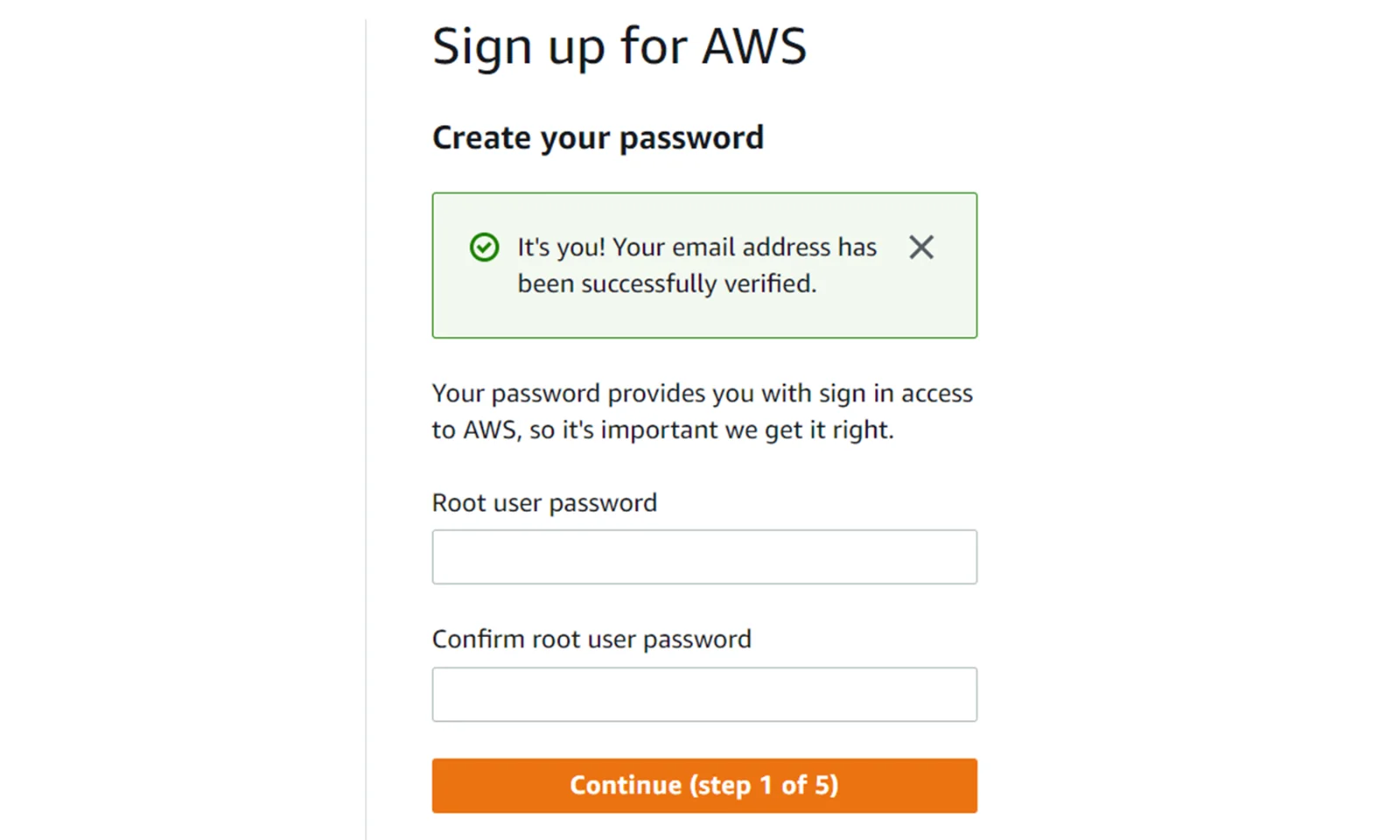
Step 3: After confirming the address, we proceed to entering our password for the root account.
gft-image-blog-jak-utworzyc-darmowe-konto-aws-i-skonfigurowac-konsole-4.png
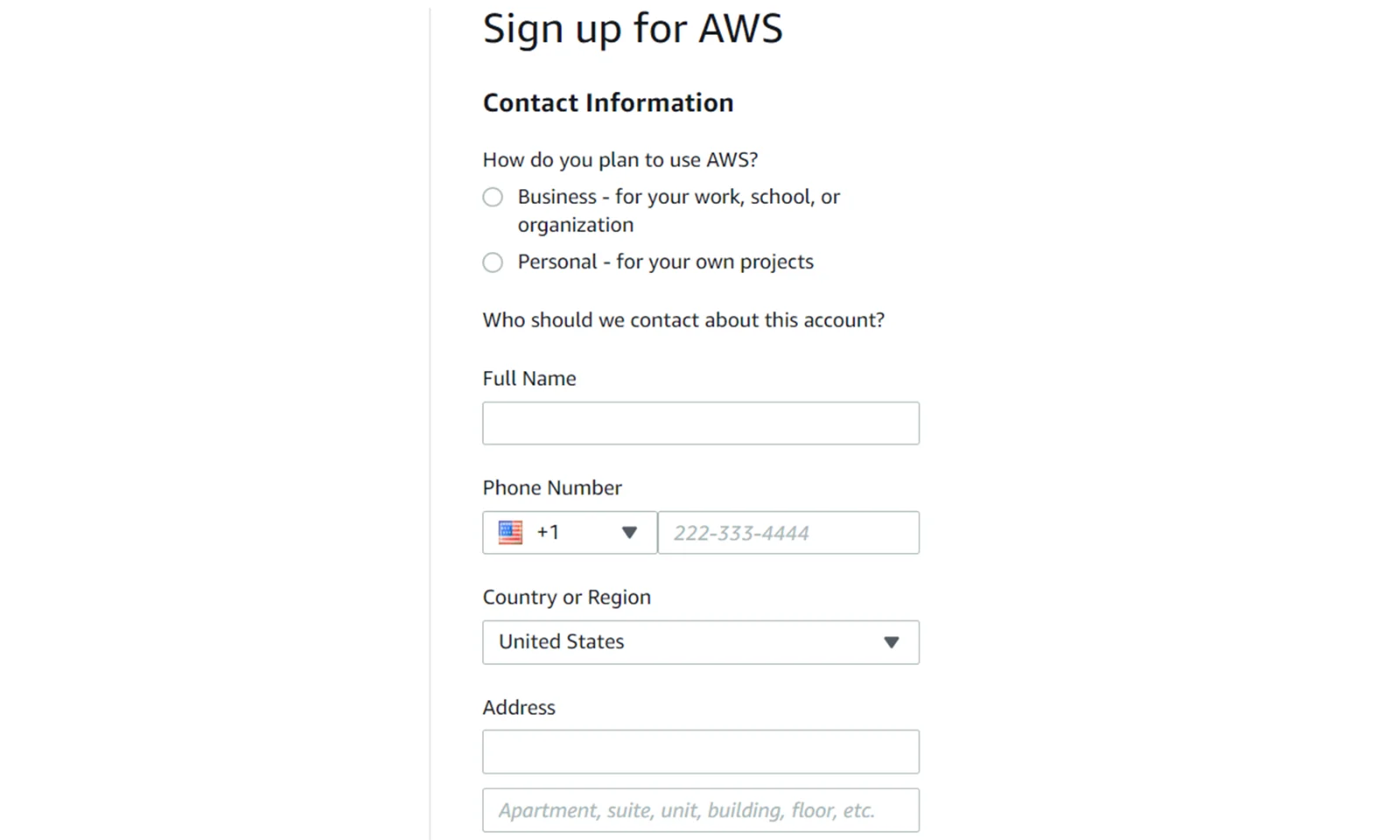
Step 4: In the next step, we need to provide our data. We need to provide real data here. This is because they will be needed to verify the card and phone number.
gft-image-blog-jak-utworzyc-darmowe-konto-aws-i-skonfigurowac-konsole-5.png
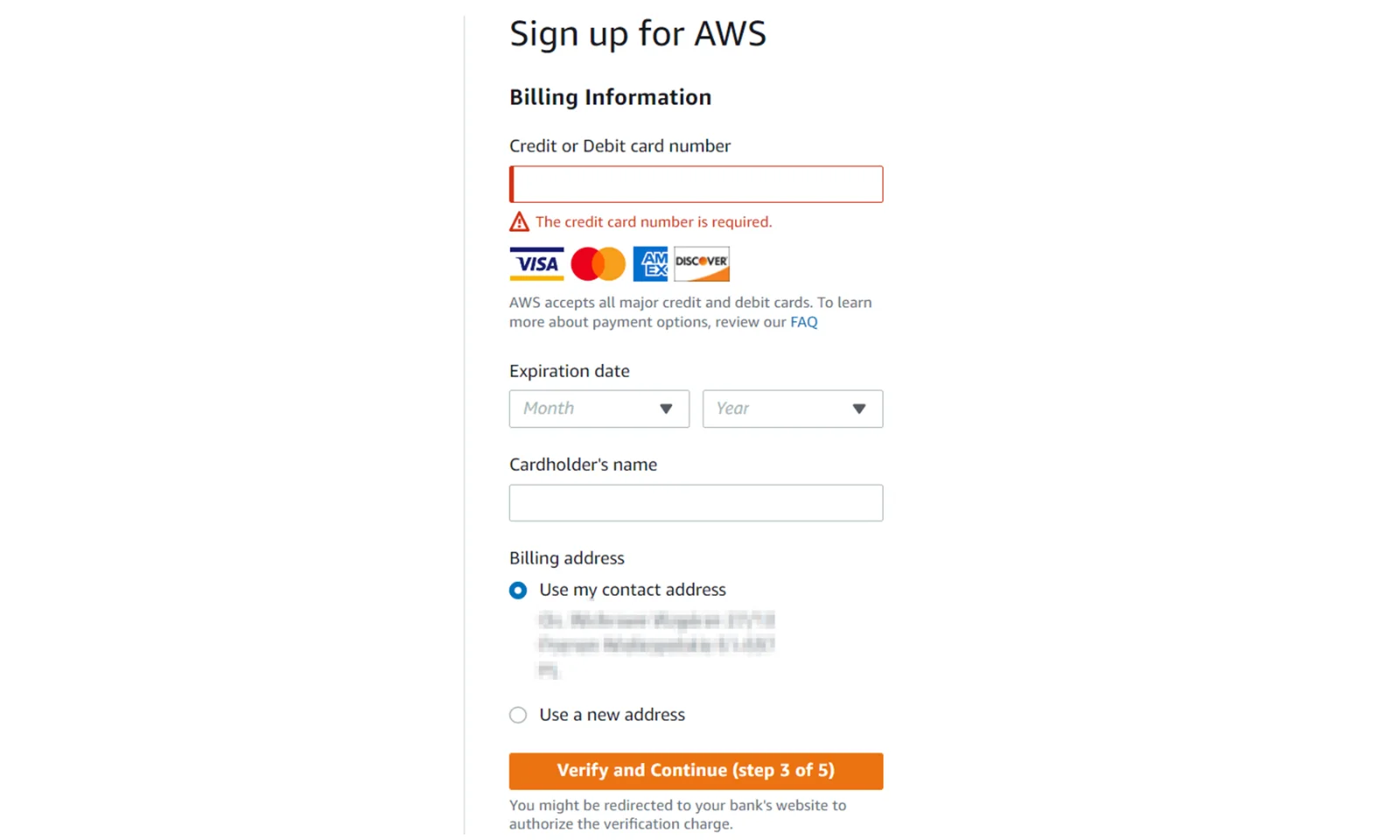
Step 5: In the next step, we must provide our payment/credit card details. Here you will also need to confirm the withdrawal of $1 from your account. This money will be returned after verification by AWS.
gft-image-blog-jak-utworzyc-darmowe-konto-aws-i-skonfigurowac-konsole-6.png
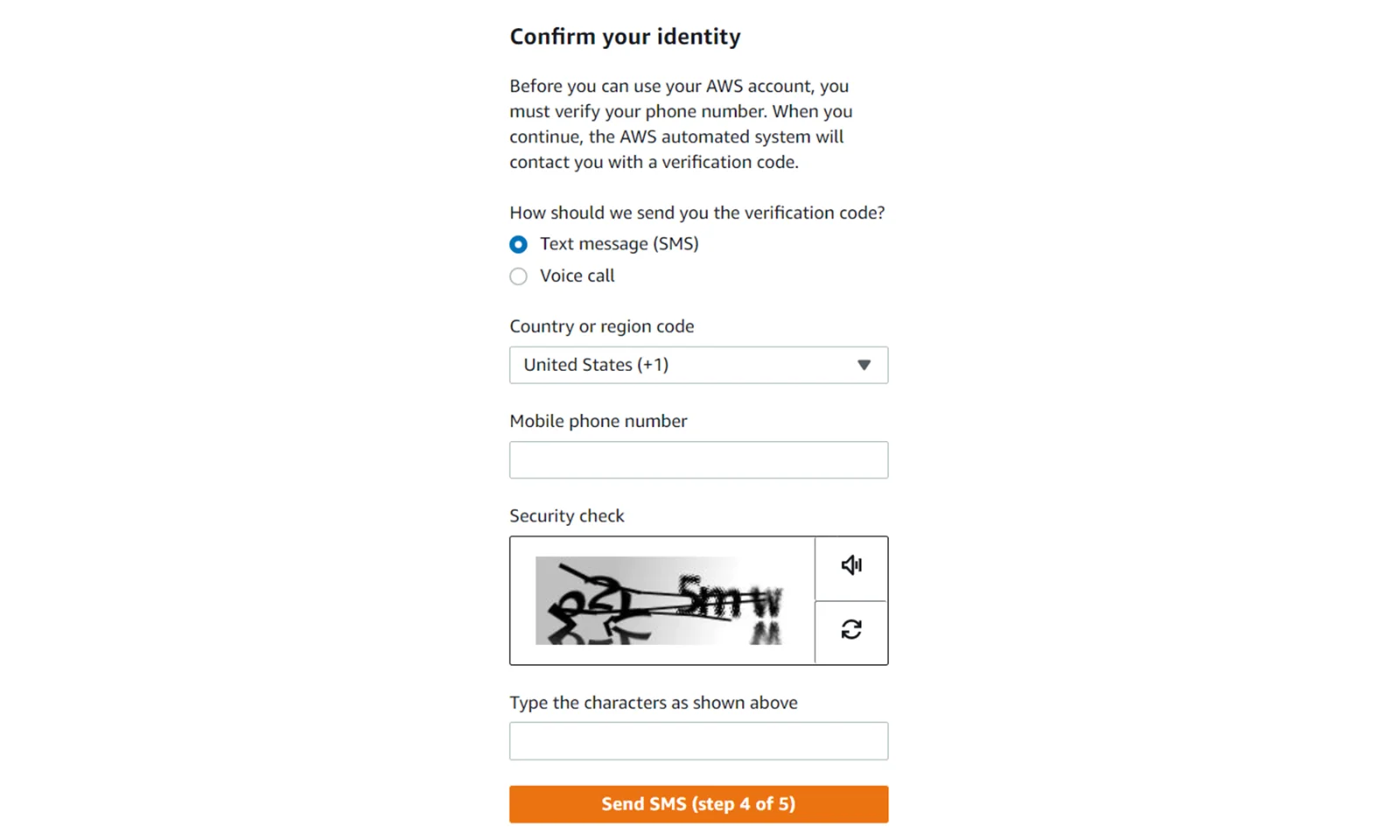
Step 6: Now we need to confirm our phone number. To do this, we must select the type of verification. The easiest way to do this is to send the code via SMS.
gft-image-blog-jak-utworzyc-darmowe-konto-aws-i-skonfigurowac-konsole-7.png
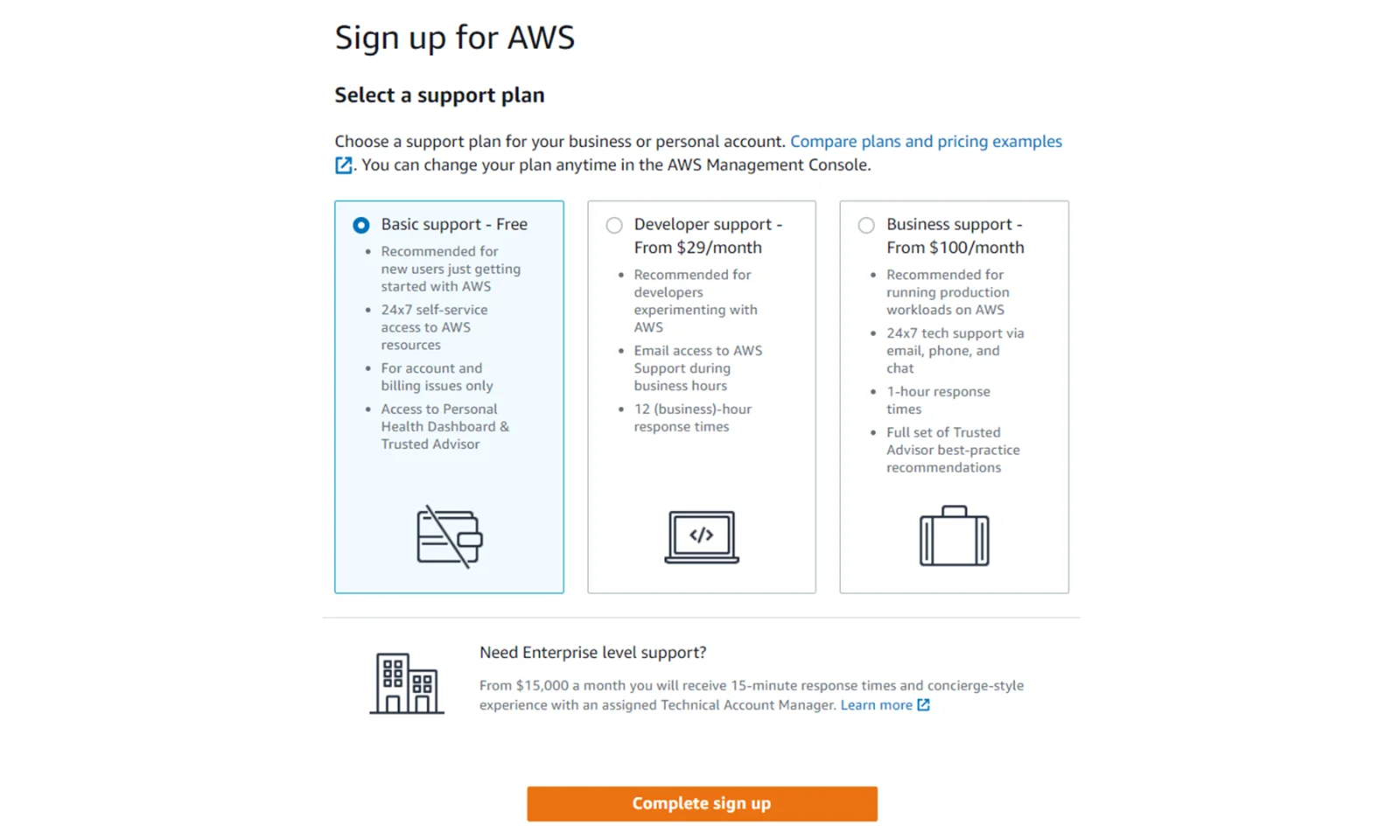
Step 7: In the last step, we choose the type of support from AWS. Here we choose the Basic support Free option.
gft-image-blog-jak-utworzyc-darmowe-konto-aws-i-skonfigurowac-konsole-7.png
gft-image-blog-jak-utworzyc-darmowe-konto-aws-i-skonfigurowac-konsole-1.png

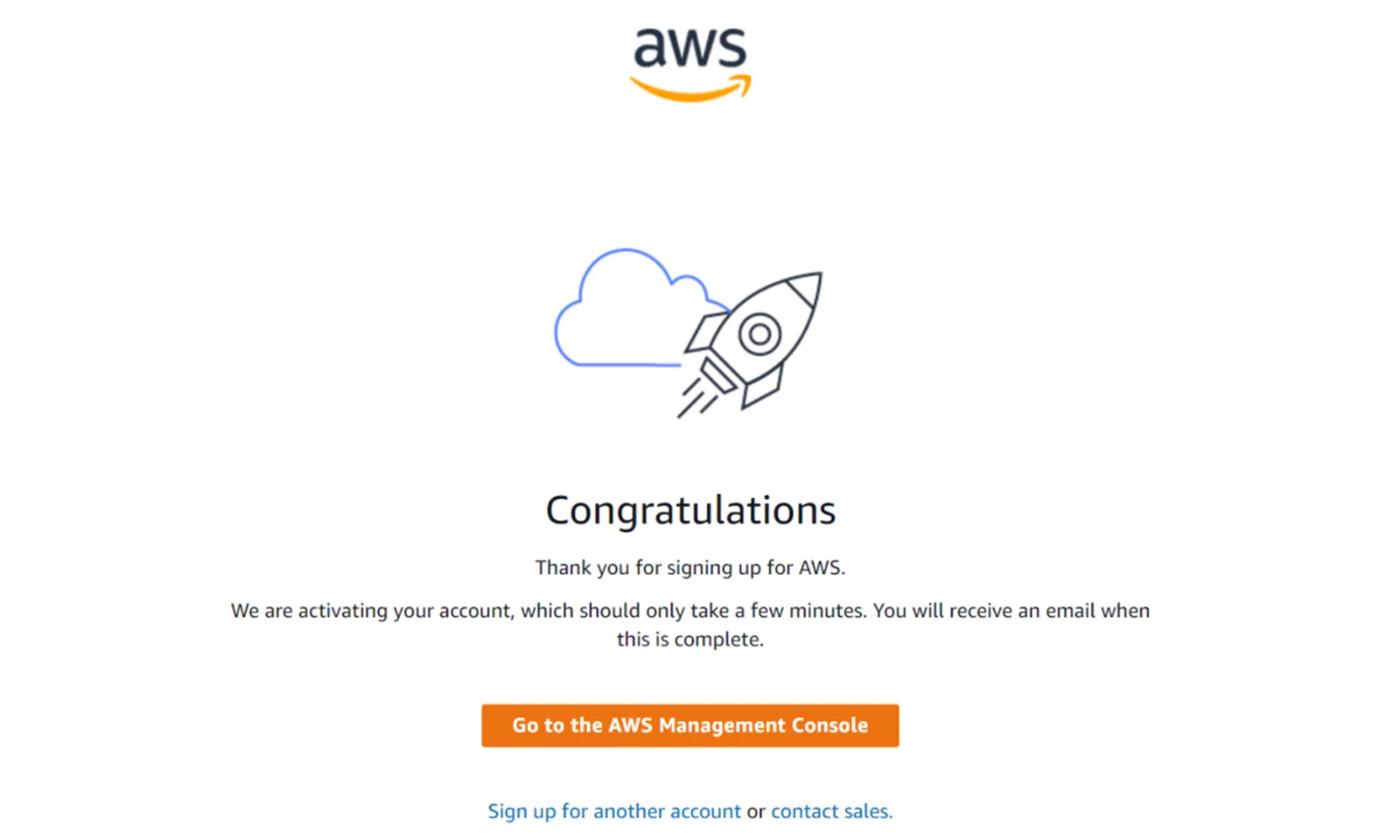
Congratulations

We have reached the final step. The account has been created, but we still have to wait a while until it is activated. We will receive information about this by e-mail.

gft-image-blog-jak-utworzyc-darmowe-konto-aws-i-skonfigurowac-konsole-8.png
gft-image-blog-jak-utworzyc-darmowe-konto-aws-i-skonfigurowac-konsole-9.png
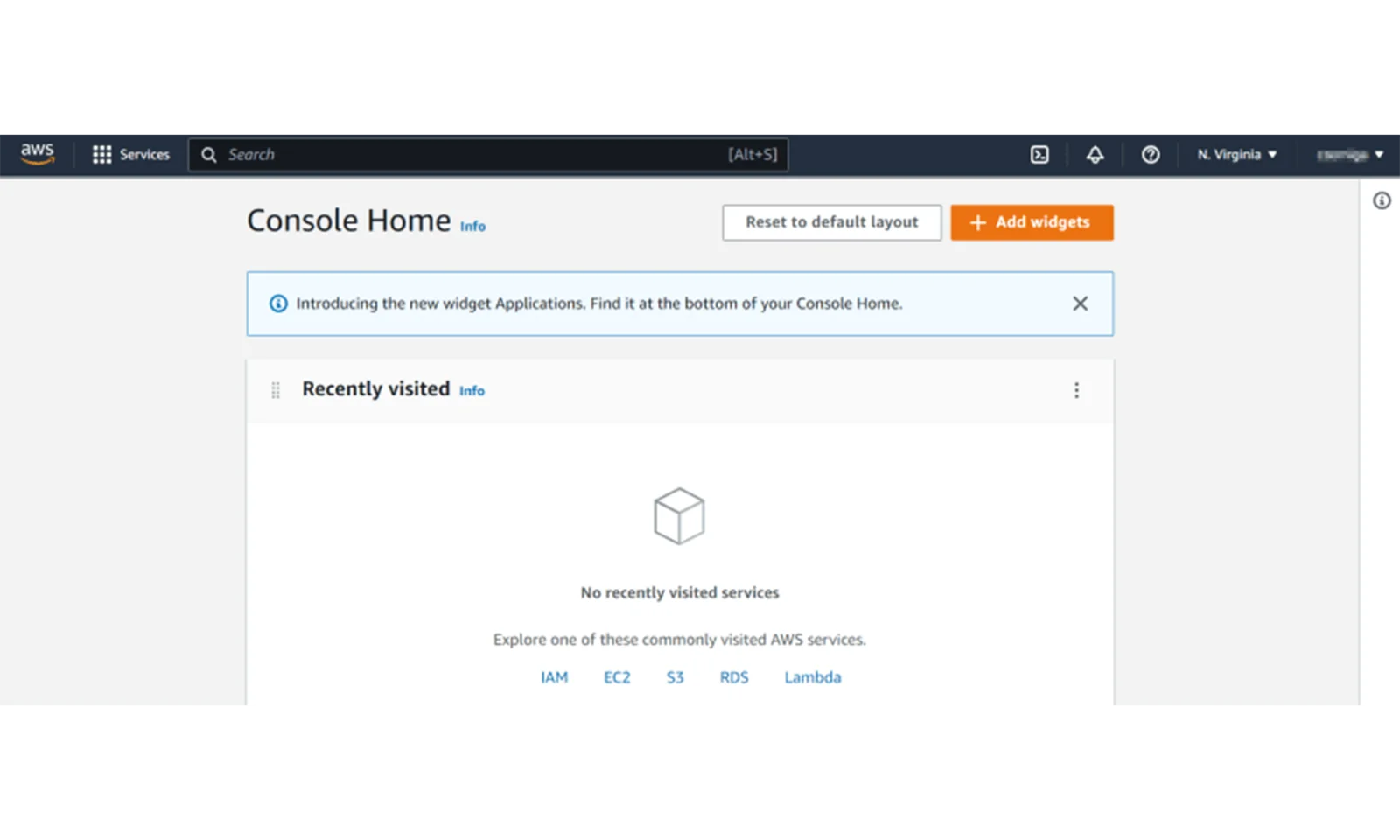
After logging in, we will see the main panel of the AWS console.
We create a user

After creating an account, we act as a root user. However, it is advisable to work with the account in the console from a user with lower privileges. Therefore, it is recommended to create such a user and use it to interact with the account.

gft-image-blog-jak-utworzyc-darmowe-konto-aws-i-skonfigurowac-konsole-10.png
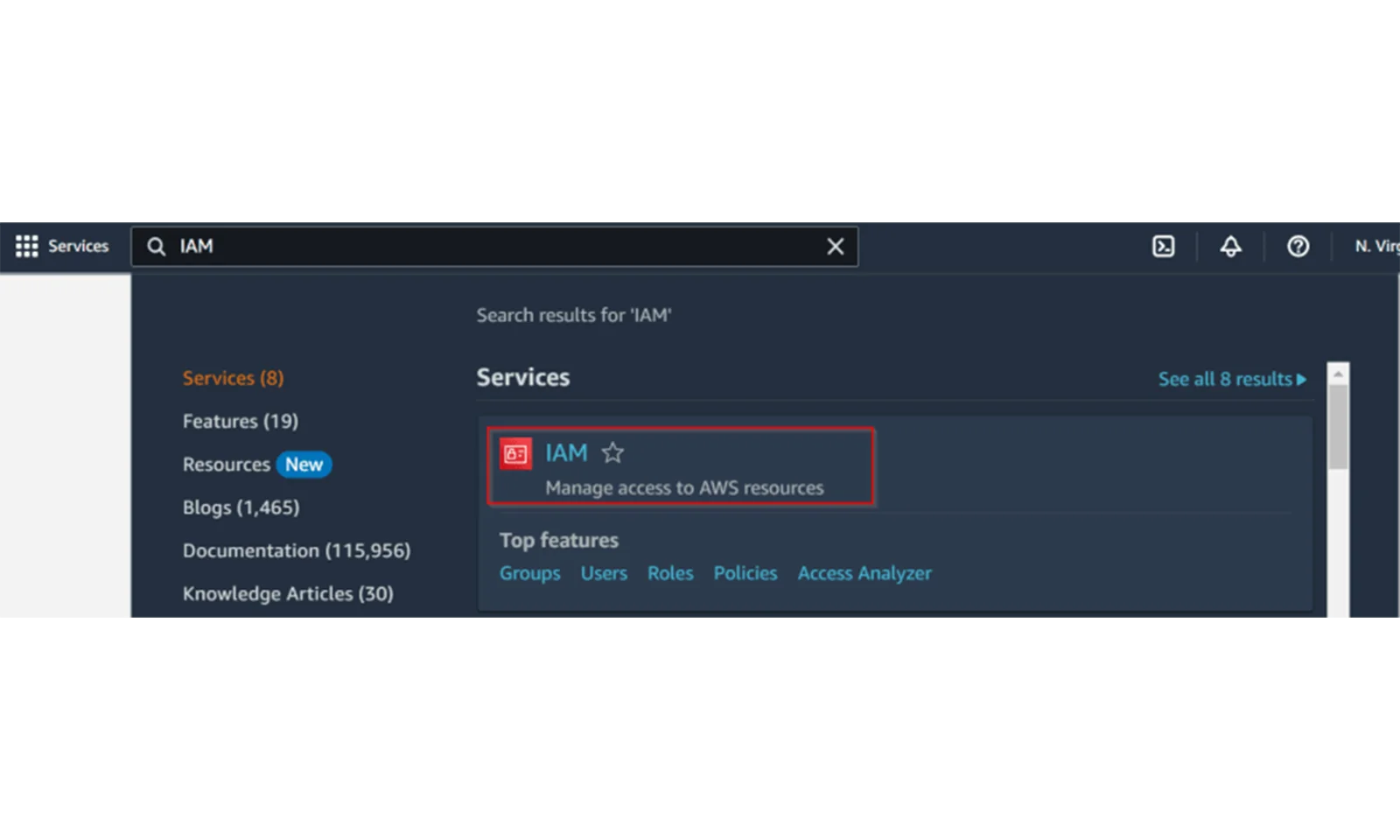
Step 1: Now go to our portal and enter IAM in the search panel. After a while, a link to the user management page will appear.
gft-image-blog-jak-utworzyc-darmowe-konto-aws-i-skonfigurowac-konsole-11.png
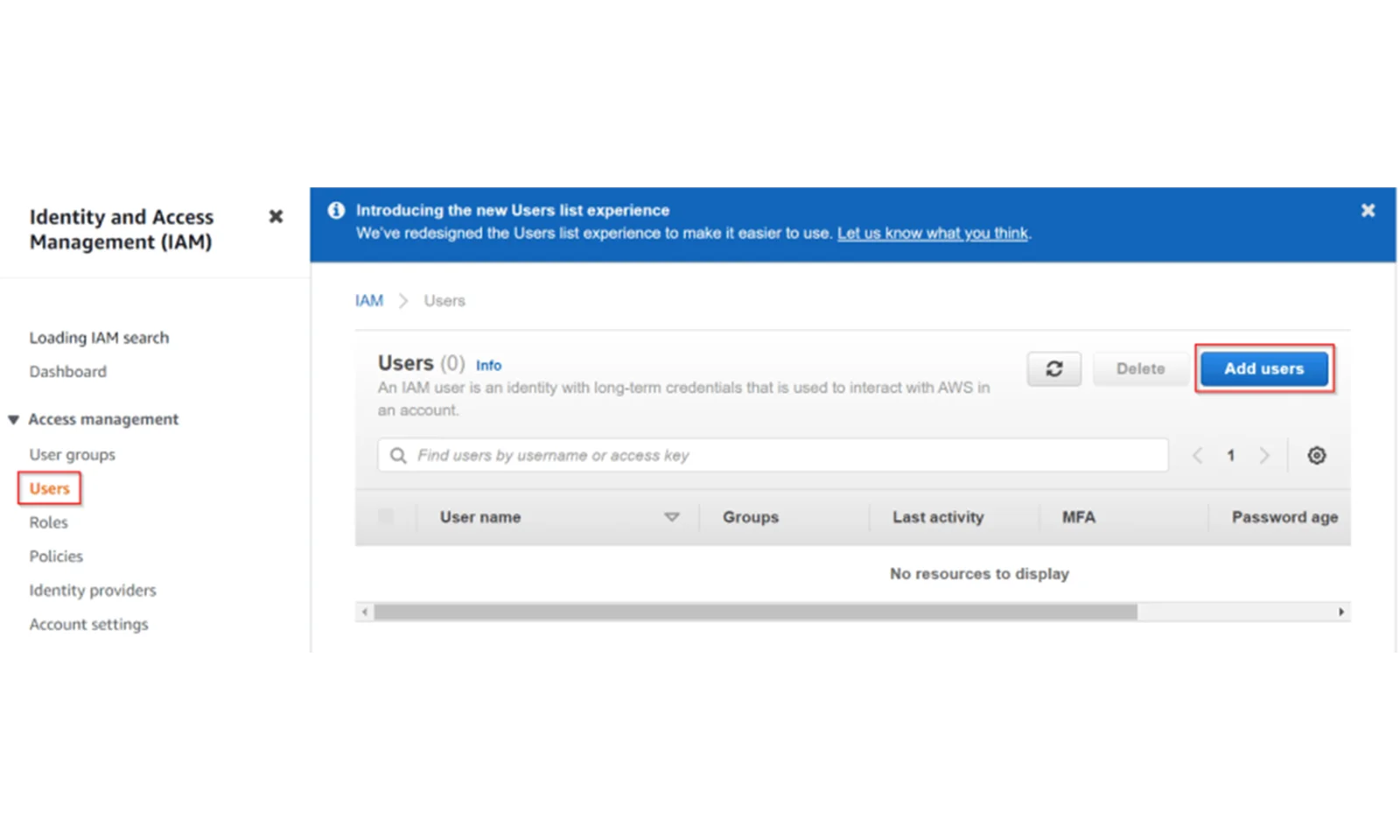
Step 2: On the next page, select Users from the menu and then click Add User.
gft-image-blog-jak-utworzyc-darmowe-konto-aws-i-skonfigurowac-konsole-12.png
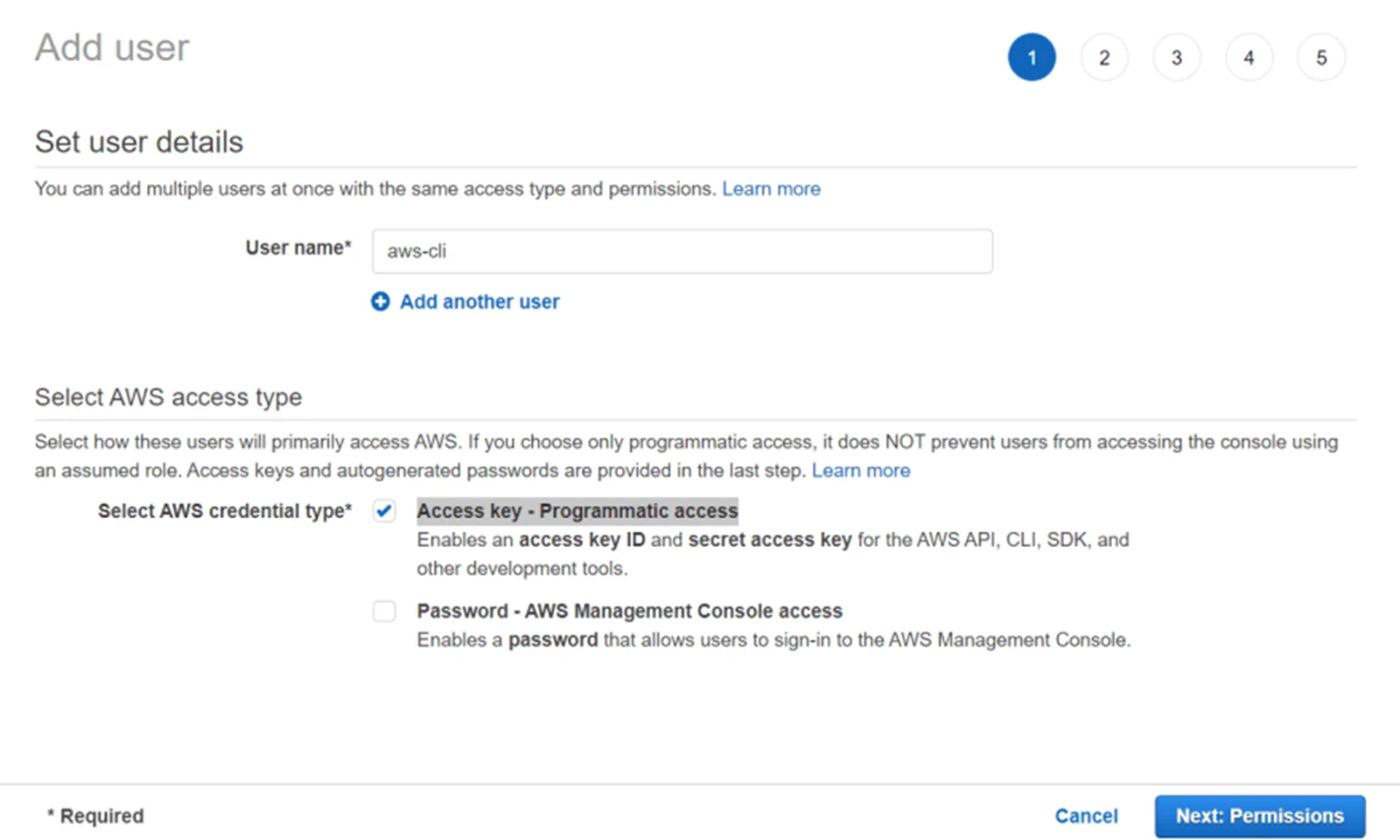
Step 3: Now we need to provide our username and select the Access key – Programmatic access option . Thanks to this, we will create a user to which we will connect from the AWS CLI. Now click on Next:Permissions.
gft-image-blog-jak-utworzyc-darmowe-konto-aws-i-skonfigurowac-konsole-13.png
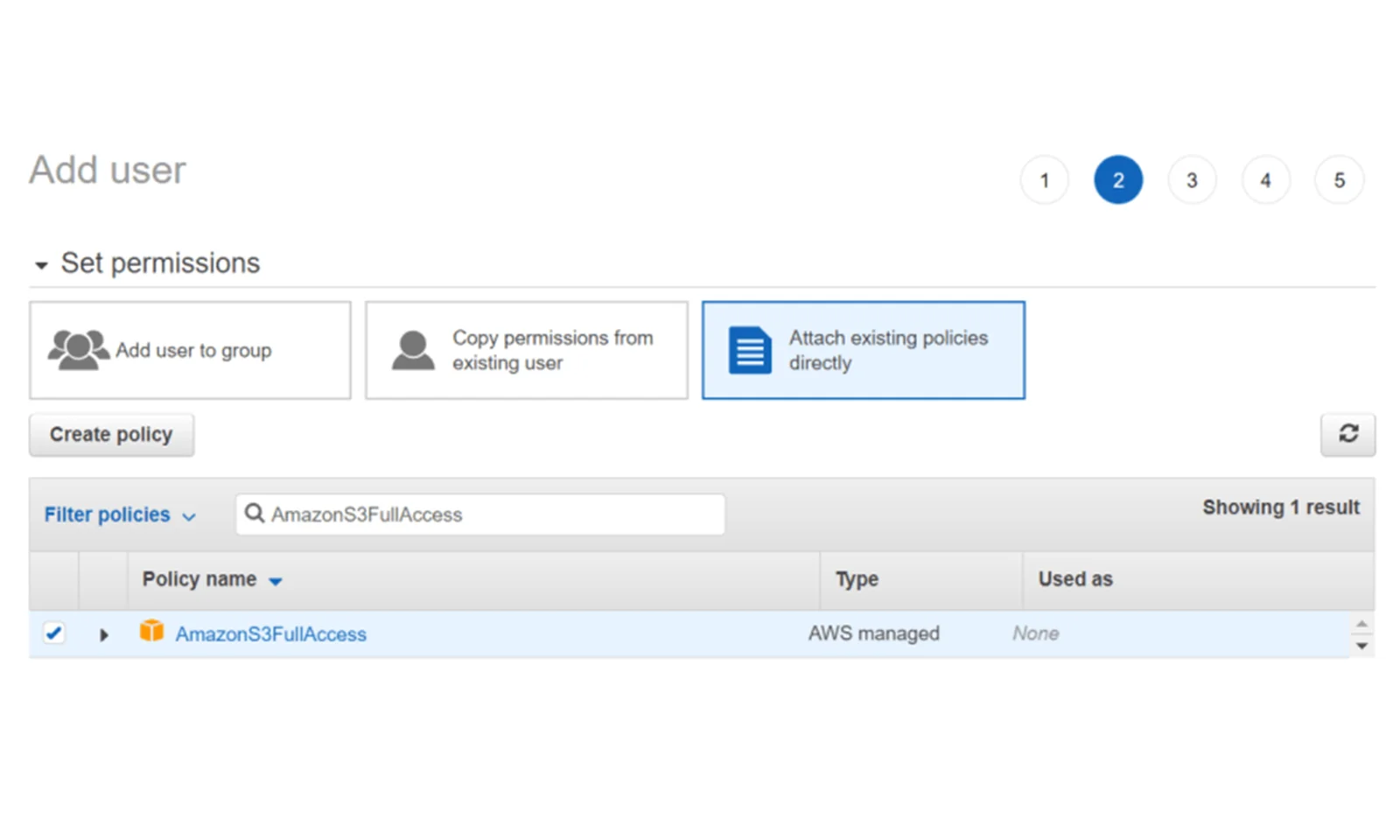
Step 4: In the next step, we need to grant permissions to our user. To do this, we select the Attach exisiting policies directly option . Then in the search window we enter AmazonS3FullAccess . Thanks to this, the user will be able to fully manage S3 buckets. If you want, you can grant more permissions here.
Step 5: In the next step, we assign tags to our account. We can skip this step and go to the next step - summary.

gft-image-blog-jak-utworzyc-darmowe-konto-aws-i-skonfigurowac-konsole-14.png
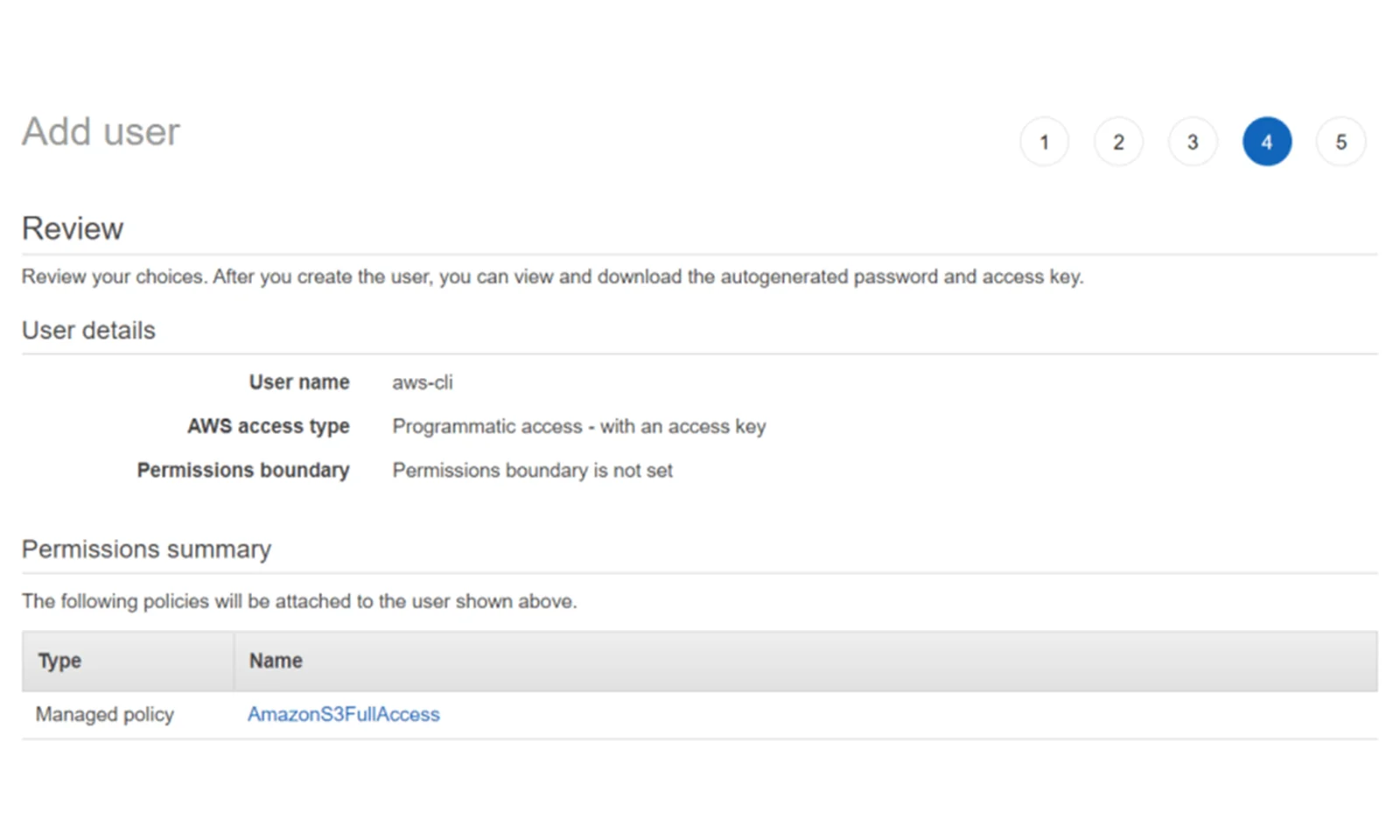
Step 6: Now we can check the summary about our user. We create a user by clicking Create user.
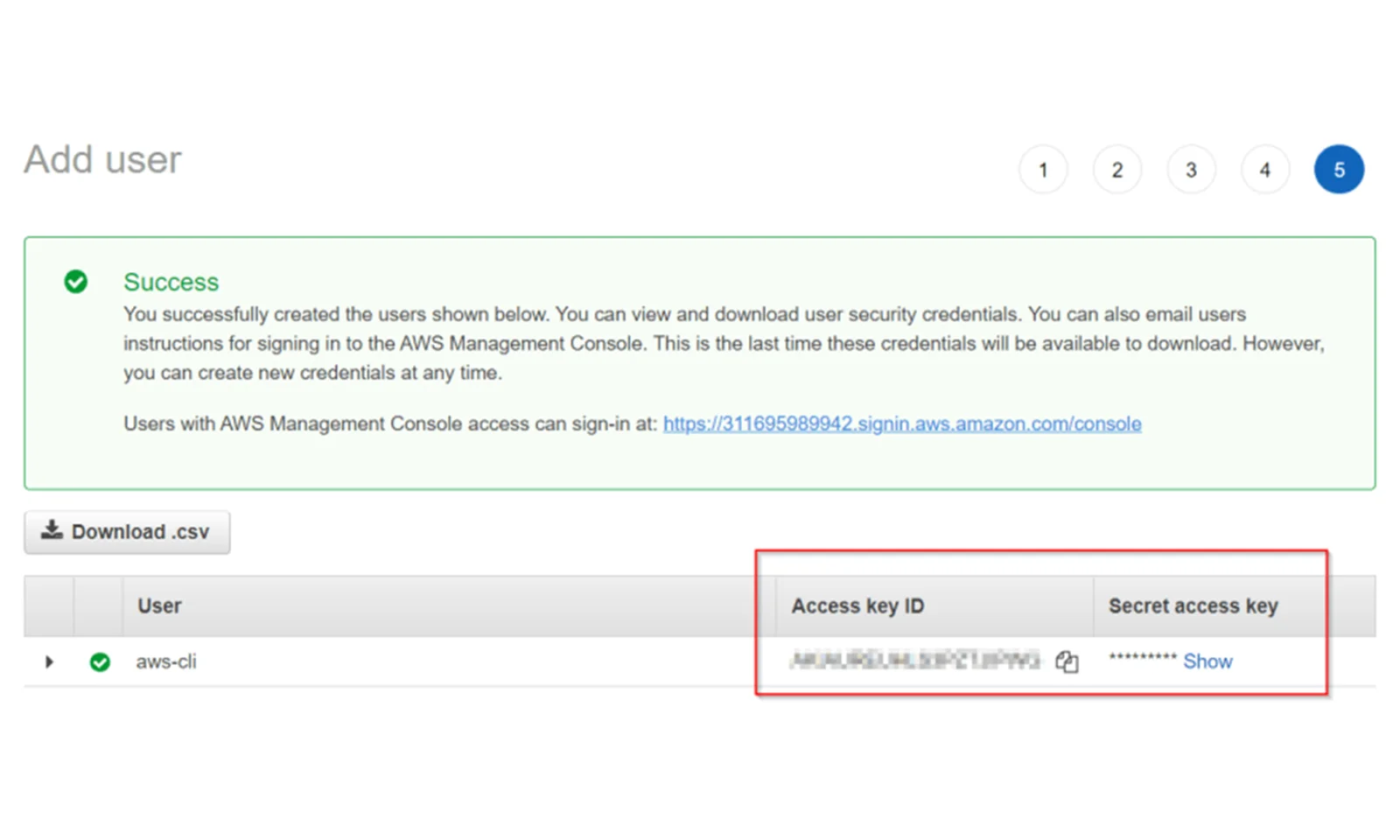
gft-image-blog-jak-utworzyc-darmowe-konto-aws-i-skonfigurowac-konsole-15.png
Step 7: There is very important information on the last page of user creation. These are two keys : Access key ID and Secret access key. Copy them because you will need them when configuring AWS CLI.

We configure AWS CLI

Amazon provides a very good AWS CLI tool that allows you to manage resources from the console. Below I present how to configure the Linux console. If you want to use other consoles (Windows or e.g. Mac), please visit the official AWS website.

Step 1

The first step is to install the AWS CLI tool. The fastest way to achieve this is to run the script below:

  • curl "https://awscli.amazonaws.com/awscli-exe-linux-x86_64.zip" -o "awscliv2.zip" unzip awscliv2.zip sudo ./aws/install


After installing the tool, we can check whether it works properly by running the command:

  • > aws --version aws-cli/2.1.10 Python/3.7.3 Linux/5.10.102.1-microsoft-standard-WSL2 exe/x86_64.ubuntu.20 prompt/off

Step 2

Now we need to configure our tool so that it can communicate with our account. To do this, we need to run the command:

  • > aws configure AWS Access Key ID [None]: **[KEY_ID]** AWS Secret Access Key [None]: **[Access Key]** Default region name [None]: **[region]** Default output format [None]: json


In place of  [KEY_ID]  and  [Access Key]  we must provide our ID and the key generated when creating the user. Additionally, in  [region]  we provide the default region.

Step 3

After configuring the tool, we can check whether we are able to connect to our account. To do this, we can run an example command that will create an example S3 bucket. The bucket name must be unique

  • > aws s3api create-bucket --bucket bucket-20221206 --region us-east-1 { "Location": "/bucket-20221206" }


Now we can display the bucket list:

  • > aws s3 ls 2022-12-06 15:29:29 bucket-20221206


Finally, it is worth deleting this bucket:

  • > aws s3api delete-bucket --bucket bucket-20221206 --region us-east-1

Summary

As I've shown in this guide, creating a free AWS account is simple and requires only registration on the Amazon website. Configuring the AWS CLI console is also not complicated and only requires a few minutes.


After configuring the above tools, you can start working with AWS using Infrastructure as Code tools such as Terraform. Which I sincerely encourage!

Got questions?
We're happy to help.

contactFormTitle

message
dataProtectionDeclaration